Team and sites
An account can have more than one person, and more than one website. This is how to invite teammates and give them the right access, and how to run several sites side by side from a single login.
Inviting teammates
The Team screen lists everyone on the account and lets you invite more. To add someone, enter their email, an optional name, and a role, then send the invitation. They receive an email with a link to set their own password, and once they have, they can sign in. You never set or see their password.

There are two roles:
- Owner. Full control, including the team, billing and domains.
- Editor. Manages content and the day-to-day site, without the account-level settings.
You can change someone's role at any time from the dropdown beside their name, or remove them. You cannot remove your own account, so an account always keeps at least one owner. People you have invited but who have not yet set a password show as invited until they do.
Running more than one site
One account can hold several sites, each with its own pages, blog, theme and web address. This suits an agency running client sites, or a business with separate brands. How many sites you can have depends on your plan, shown on the plans page.
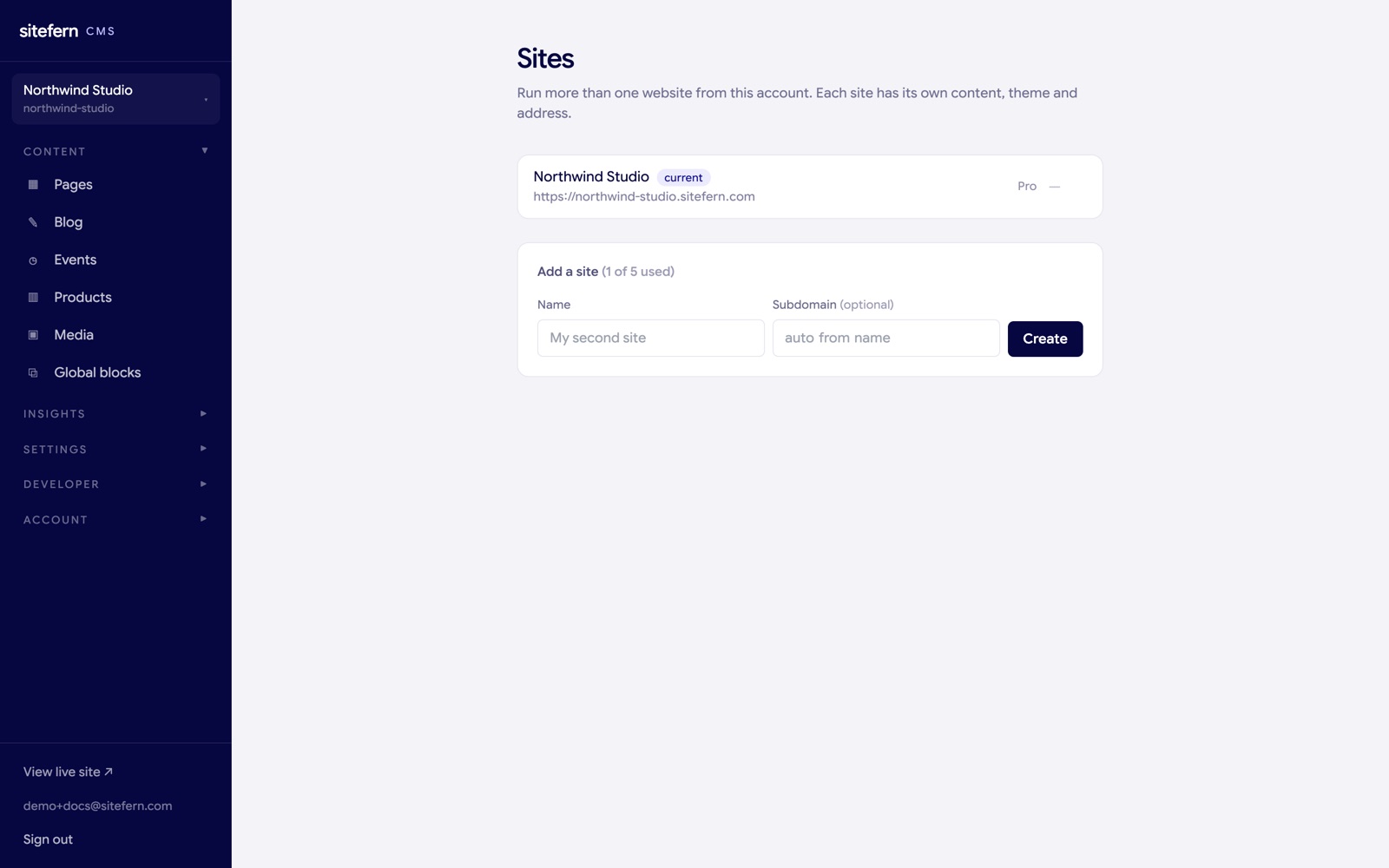
The Sites screen lists every site on the account, shows which one you are editing, and lets you add another within your plan's limit. A new site starts with its own subdomain and a fresh Home page, ready to build, and it inherits the account's plan.
Switching between sites
The site switcher sits at the top of the menu, just under the sitefern name, showing the site you are working on. Open it to jump to another site on the account, or to manage your sites. When you switch, the whole admin reloads onto that site, so the pages, blog, media and settings you see are all for the site you picked. Everything stays cleanly separated: work on one site never touches another.