Sections and blocks
A page is a stack of sections. This is the full reference: how to add them, the types available, how to edit and style each one, and how to arrange them.
What is a section?
A section is one horizontal band of a page: a header, a hero banner, a row of services, a pricing table, a footer. Every page is built by stacking sections in the order you want them. Each section holds its own content and has its own settings, and the fields you see for a section come from the active theme, so you only ever get the options that section actually supports.
How do I add a section?
In the page editor, the Add section control sits at the foot of the section rail on the left. Clicking it opens a menu of everything you can insert.
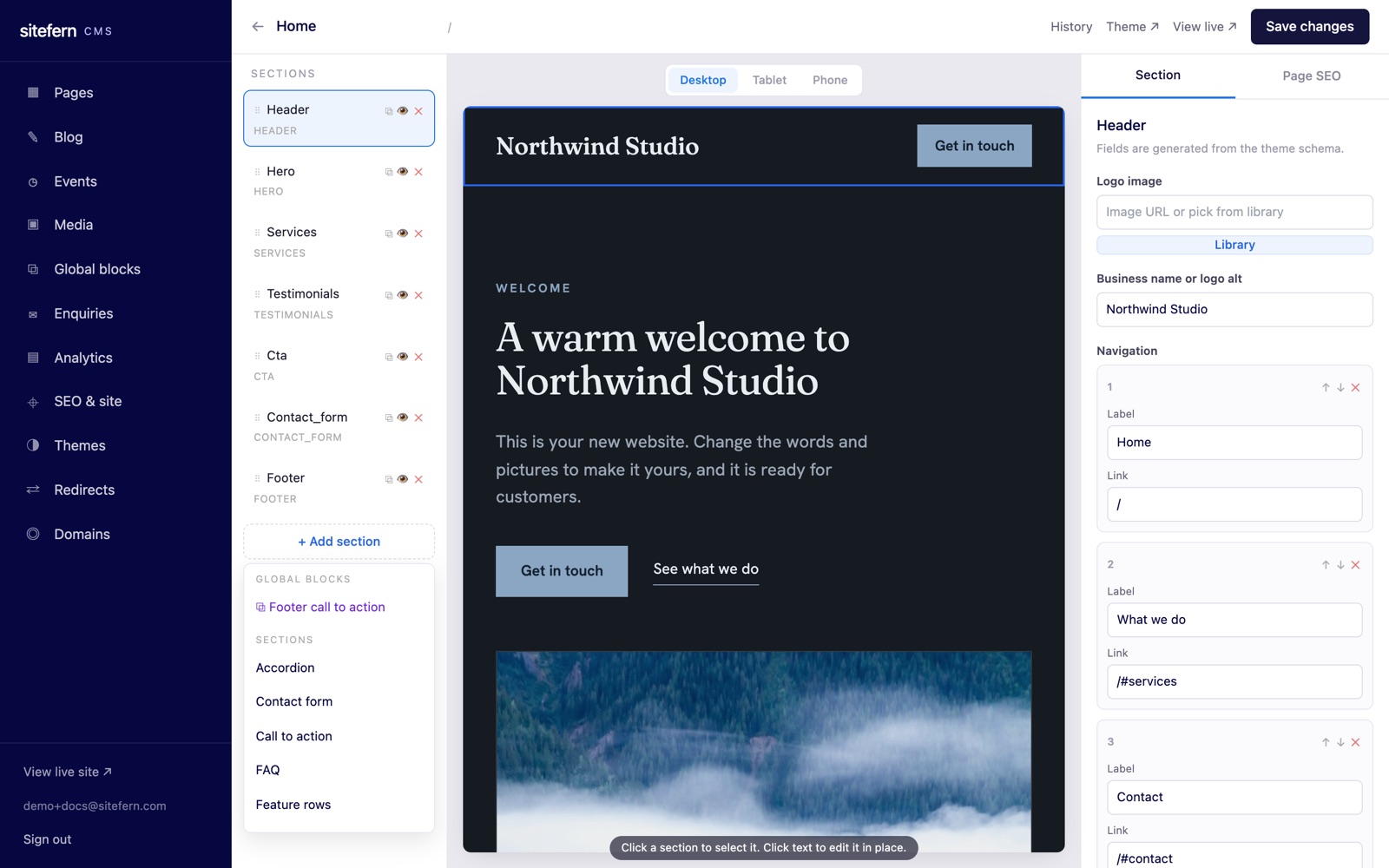
The menu has two groups. Global blocks at the top lists any shared blocks you have made, so you can drop a reusable block (a footer call to action, for example) onto the page. Below that, Sections lists every section type the theme provides. Pick one and it is added to the bottom of the page, selected and ready to edit.
What section types are there?
The exact list depends on your theme, because each theme decides which sections it offers and how they look. Across the template library the common types are below. Switching theme keeps the content of any section type both themes share.
- Header. Your logo or business name and the top navigation. Set the logo image or text, and the navigation links as label and address pairs.
- Hero. The large opening band: a heading, a short line of supporting text, and one or two buttons. The first thing a visitor reads.
- Services or feature rows. A set of items, each with a title and a short description, for what you offer or what makes you different.
- Testimonials. Quotes from customers, each with a name and where they are from.
- Pricing. Plans or packages shown side by side, each with a price and a list of what is included.
- Team. People, each with a photo, a name and a role.
- Logos. A row of client or partner logos, often used as a trust strip.
- Gallery. A grid of images that open in a lightbox when clicked, for portfolios and finished work.
- Collection. A grid that pulls in your latest products, posts or events automatically, with a link through to the full listing. Pick which type to show; new items appear here as you publish them, with no editing needed.
- Video. An embedded video from a link.
- Accordion or FAQ. Questions that expand to reveal answers, useful for common questions and tidy for long content.
- Call to action. A focused band with a heading and a button, to point visitors at the next step.
- Contact form. A form that sends messages to your enquiries inbox, with spam filtering built in.
- Statement. A single large line or short paragraph given room to breathe, for a mission, a promise or a standout quote.
- Stats. A row of headline numbers, each with a label, for figures worth showing off.
- Steps. A numbered sequence that explains how something works, one step at a time.
- Rich text. A free block of formatted prose, for longer copy that does not fit a more specific section.
- Booking. An embedded booking calendar from a link, so visitors can pick a slot without leaving the page.
- Newsletter. An email sign-up that drops new subscribers straight into your enquiries inbox.
- Map. An embedded map of your location, from an address or a map link.
- Find us. Your address, opening hours and contact details in one block, which also feeds the local business information search engines read.
- Footer. The bottom of every page: links, contact details and small print.
Editing a section's content
Select a section, by clicking it in the rail or in the preview, and its fields open in the right panel under the Section tab. The fields are generated from the theme, so a hero offers a heading and buttons, a pricing section offers plans, and so on. List-style fields, such as navigation links or pricing plans, let you add, edit and remove individual items.
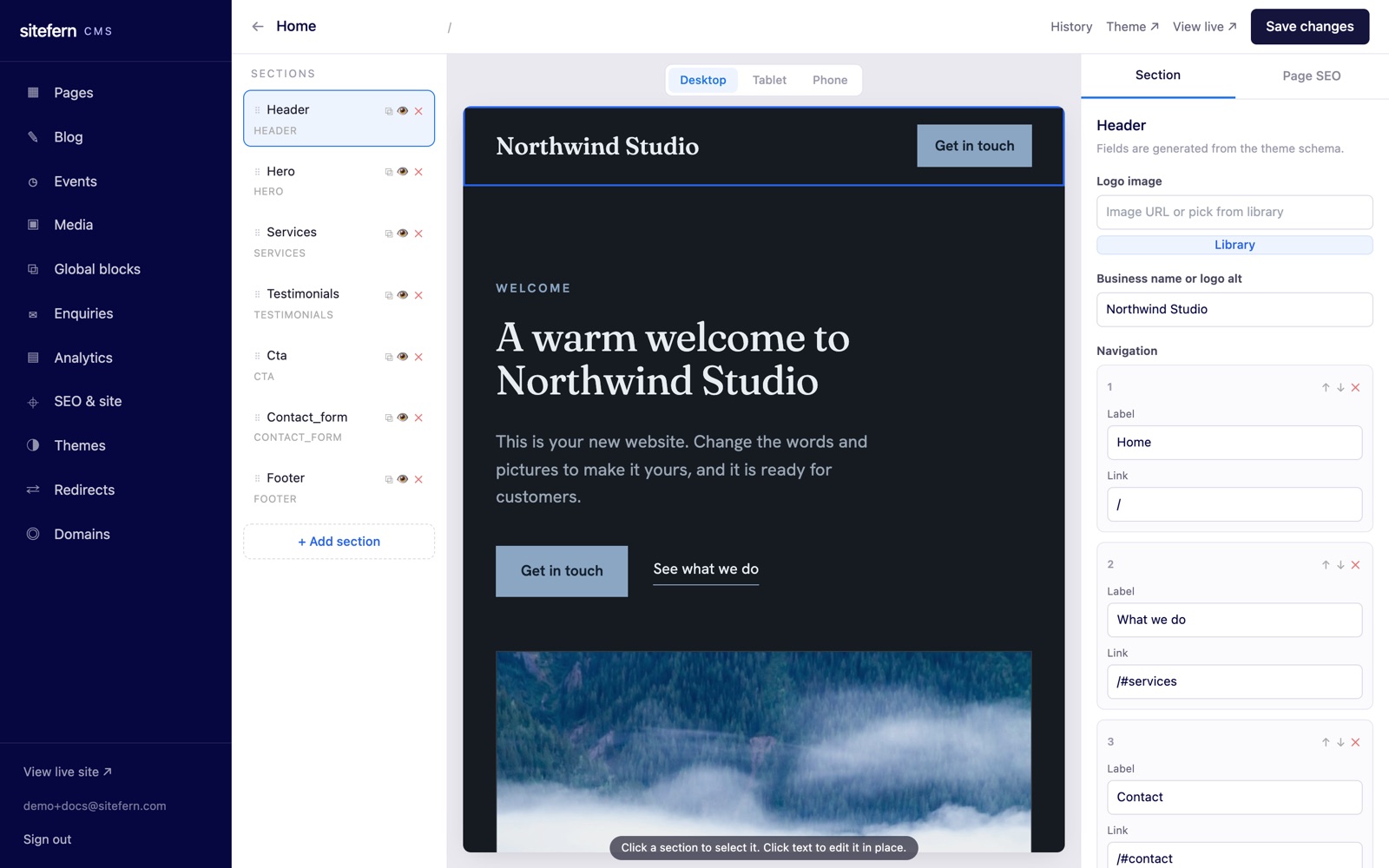
You can also edit most text straight on the page. Click a piece of text in the live preview and type over it in place. Both ways of editing update the same content, so use whichever suits the moment.
Styling a single section
Each section can be styled on its own, separately from the theme, using the section style controls in the right panel. You can set a background colour for that band and adjust its vertical spacing, so you might give one section a tinted background to set it apart while the rest follow the theme. These changes apply only to the section you have selected, not the whole site. Site-wide appearance lives in theme settings.
Arranging sections
The rail on the left is where you order and manage sections.
- Reorder. Drag a section up or down the rail to move it. The preview reflows as you go.
- Hide or show. The eye control hides a section without deleting it, so you can take something off the page temporarily and bring it back later.
- Duplicate. Copy a section, with its content, to save setting up a similar one from scratch.
- Delete. Remove a section you no longer need.
When you are happy, Save changes publishes your edits and keeps a version in history, so nothing is ever lost.