SEO, analytics and enquiries
The parts of sitefern that help your site get found, show you who is visiting, and make sure a message from a customer reaches you.
SEO and site settings
The SEO and site screen holds the settings that apply across the whole site. Much of the groundwork is done for you on every page already: correct titles and descriptions, a sitemap, clean addresses and quick loading. This screen is where you set the site-wide details on top.
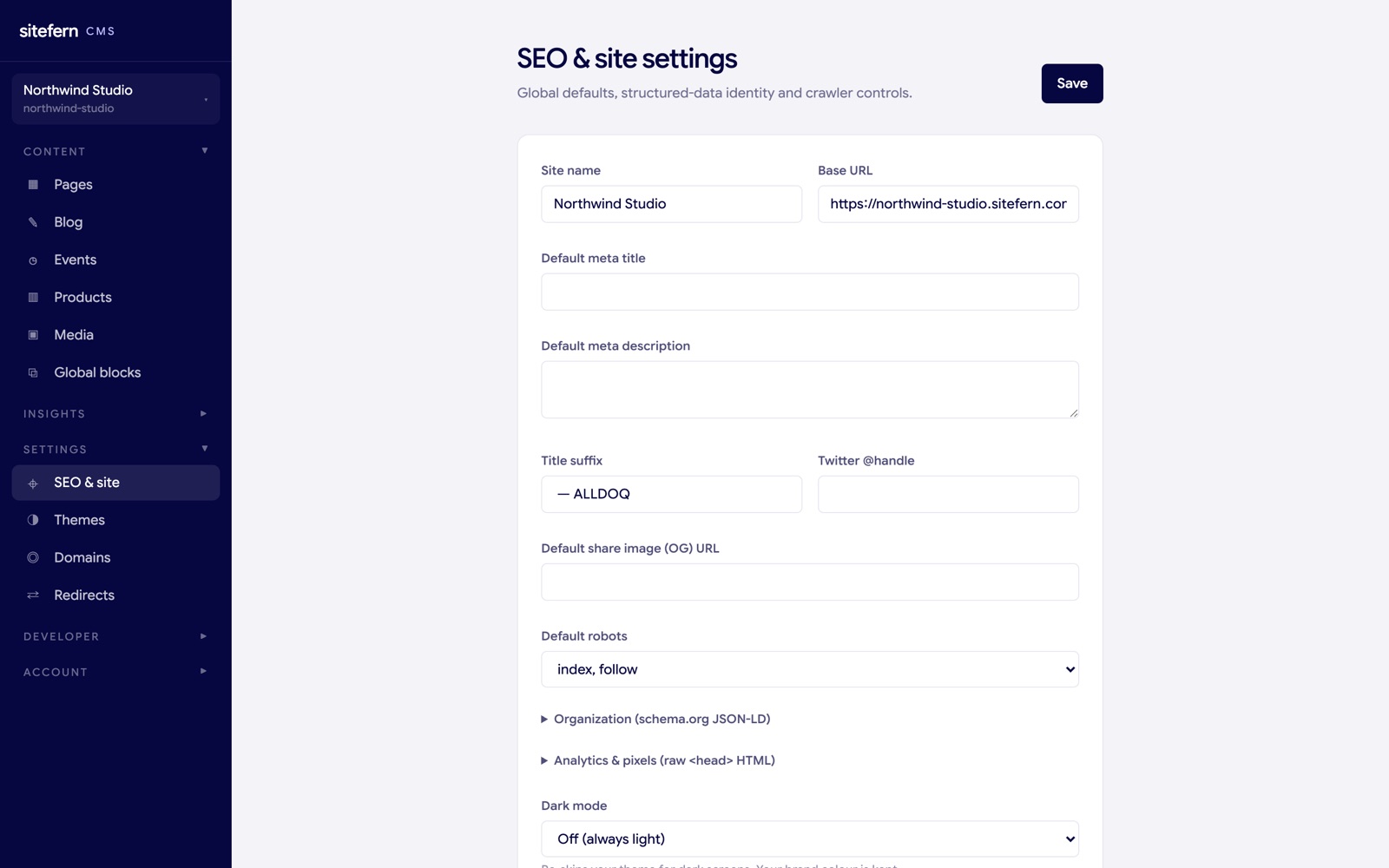
The settings on this screen, field by field:
- Site name. Your business name, used in titles and shared links.
- Base URL. The web address your site is published at, used to build absolute links in the sitemap and social tags.
- Default meta title and description. The title and description used for any page that does not set its own. Individual pages and posts can override these in their own SEO tab.
- Title suffix. Text added after every page title, commonly your business name, so a tab reads "About | Your Business".
- Default sharing image. The image shown when a page is shared on social media and has no image of its own.
- Twitter handle and organisation details. Used in social tags and in the structured data that describes your business to search engines.
- Social links. Your profiles, which themes can show and which feed your organisation's structured data.
- Favicon. The small icon shown in the browser tab.
- Default robots rule. Whether search engines should index the site by default, with a per-page override available.
- robots.txt. Leave blank for a sensible default, or set your own rules.
- Blog title and description. The heading and standfirst for your blog index.
- Analytics and pixels. A box for raw head HTML if you also use an outside tool such as Google Analytics or the Meta pixel. The built-in analytics below need nothing here.
- Custom CSS. A box for small visual tweaks, added after the theme's own styles on every page.
- Dark mode. Off, automatic (follow the visitor's device), or a toggle that puts a switch on the page. Your brand colour is kept in dark mode.
Local business details
If you serve customers from a place, or across a particular area, the business details on this screen let you describe that to search engines. Filling them in adds local business structured data to your site, which is what lets Google show your address, opening hours and a map pin, and helps you turn up for "near me" searches.
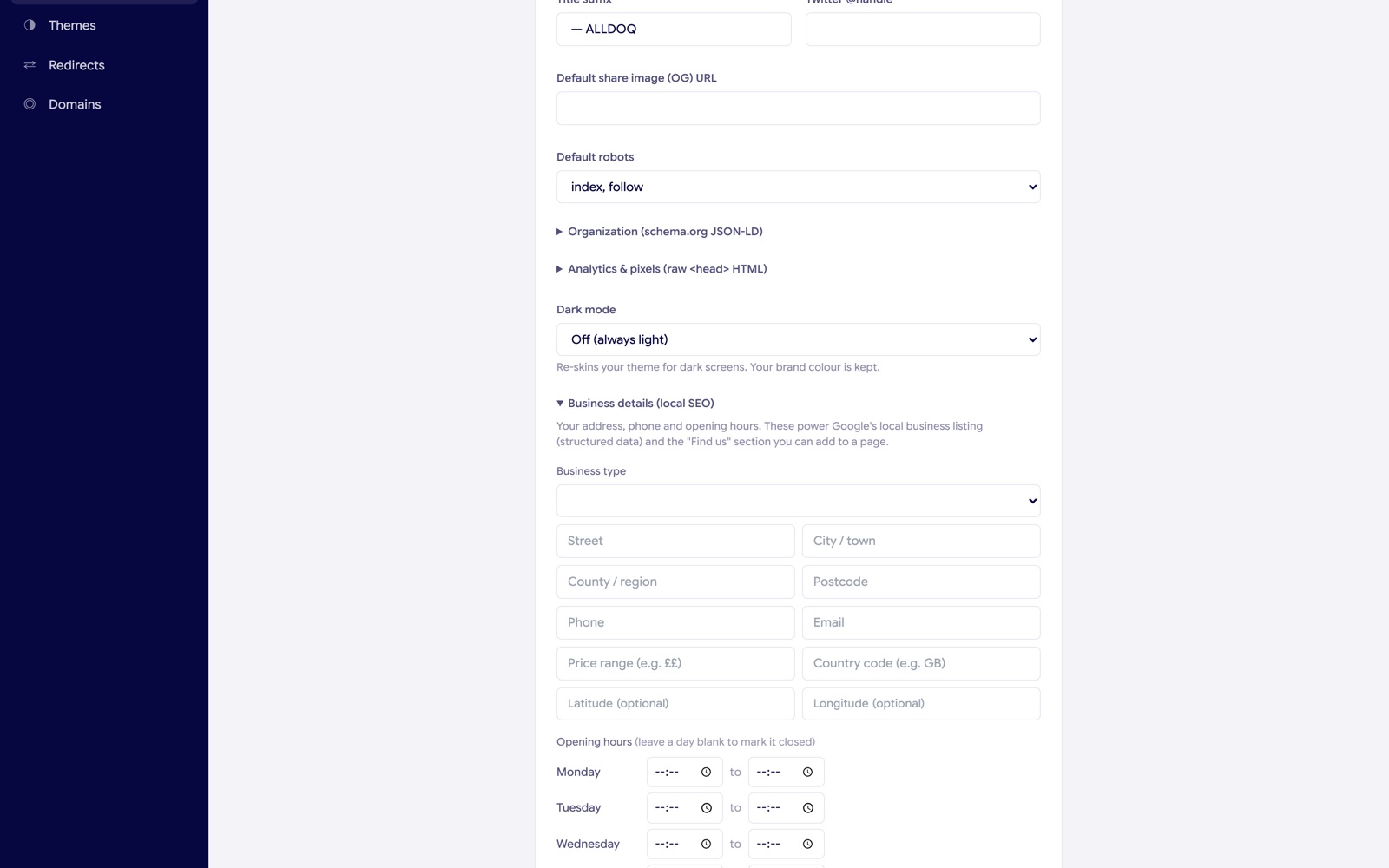
- Business type. What kind of business you are, so the listing is categorised correctly.
- Address. Street, town, region, postcode and country.
- Phone and email. The contact details shown to customers and read by search engines.
- Map position. A latitude and longitude, so your exact location can be pinned.
- Opening hours. Your hours for each day of the week.
- Price range. A rough guide shown on some listings.
These same details feed the Find us and Map sections you can drop onto a page, so you fill them in once and they appear both in your structured data and on the page itself. If you do not run a place-based business, leave them blank.
Analytics
sitefern includes its own visitor analytics, with no cookies and no tracking of individuals. It counts page views so you can see what is being read, without a consent banner and without sending your visitors' data to a third party.
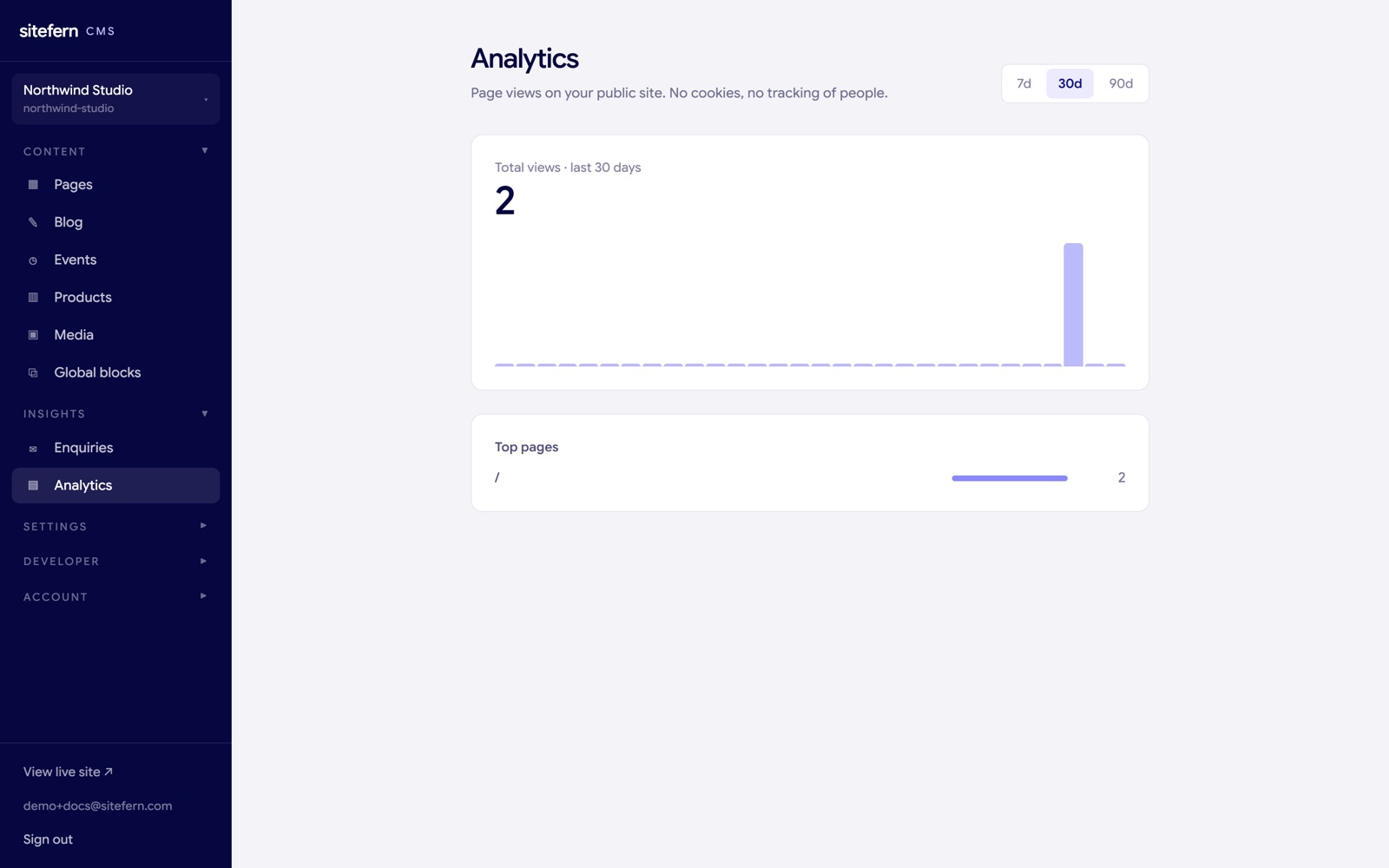
The dashboard shows your total views over the last 7, 30 or 90 days, a daily chart, and a list of your most viewed pages. Use the day toggle to change the window. It works by counting a view when a page loads, with no cookie set and nothing stored that identifies a person, so it keeps working even with the page cache and needs no consent banner. It is enough to tell you what is working without the weight or the privacy cost of a full analytics suite.
Enquiries
When someone fills in your contact form, the message lands in the Enquiries inbox, and you are notified by email so nothing is missed.
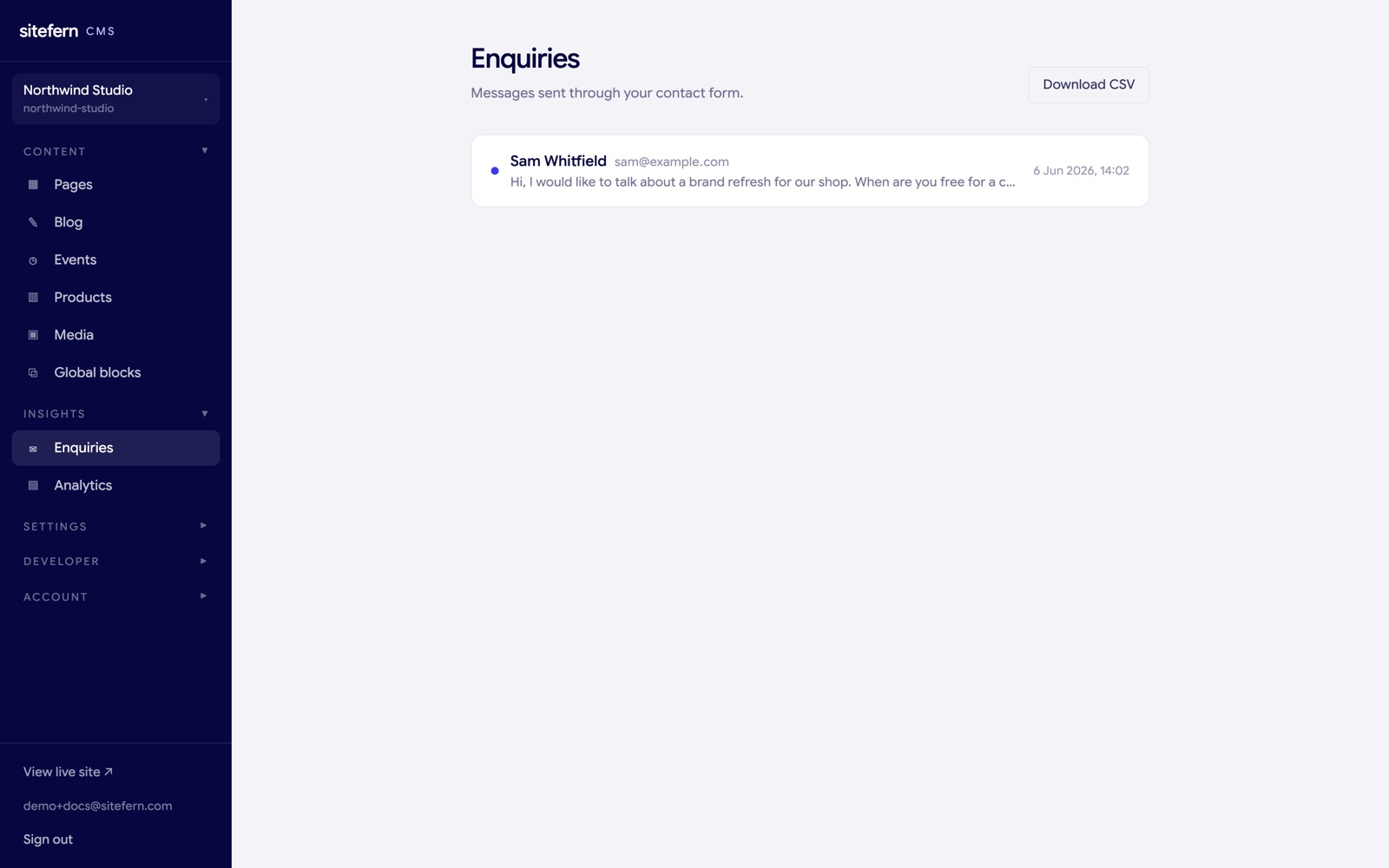
Each enquiry shows the sender's name, email, message and which page they sent it from, with the time it arrived. Unread messages are marked so you can see what is new at a glance, and the sidebar shows an unread count. You can mark a message as read, delete ones you have dealt with, and export the whole inbox to a spreadsheet (CSV) for your records or a mail-out. Spam is filtered quietly in the background by a hidden honeypot field, so the inbox stays useful without a captcha getting in your customers' way. The contact form section that feeds this inbox is added to a page like any other section, covered in sections and blocks.
Redirects
If a page's address changes, or you are moving from an old website, redirects send the old address to the new one so visitors and search engines are not met with a dead link. This protects the search ranking you have already earned.
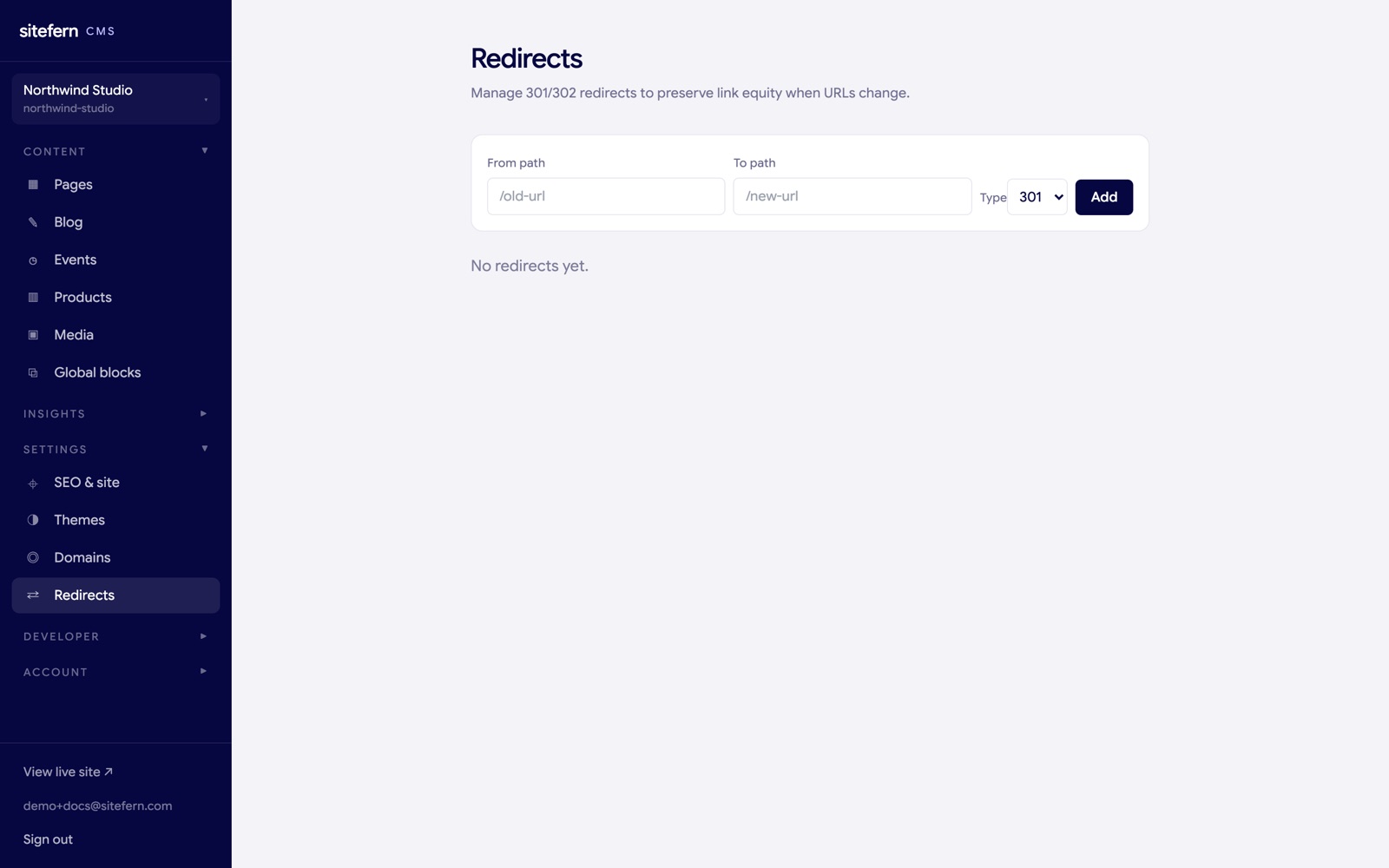
You add a redirect by giving the old path, the new path, and the type. A permanent redirect (301) tells search engines the move is final and passes the old page's ranking to the new one, which is what you want when a URL changes for good. A temporary redirect (302) is for short-lived moves. Each redirect can be switched on or off, and you can add a note to remember why it exists. Redirects take effect straight away. This is especially useful when moving from an old website, so the addresses people have bookmarked or that Google already knows still land somewhere sensible.
Answer engines and feeds
Being found is no longer only about Google's blue links. sitefern also prepares your site for AI assistants and feed readers, with nothing for you to set up.
- llms.txt and llms-full.txt. Two plain-text files, served at the root of your site, that describe your business and answer common questions in a form AI assistants can read and cite, so tools like ChatGPT and Perplexity can summarise you accurately.
- A blog feed. Your blog is published as an RSS feed at /rss.xml, so readers and apps can subscribe to new posts.
- AI crawlers welcome. Your robots file explicitly allows the well-behaved answer-engine crawlers, including those from OpenAI, Anthropic, Perplexity and Google, so your content can be read and cited rather than left out.
All of this is generated and kept current for you as you publish, so the answer-engine side of being found needs no work on your part.