The visual editor
Pages are built section by section in a live editor. The left rail lists the sections, the centre shows the real rendered page, and the right panel holds the settings for whatever you have selected.
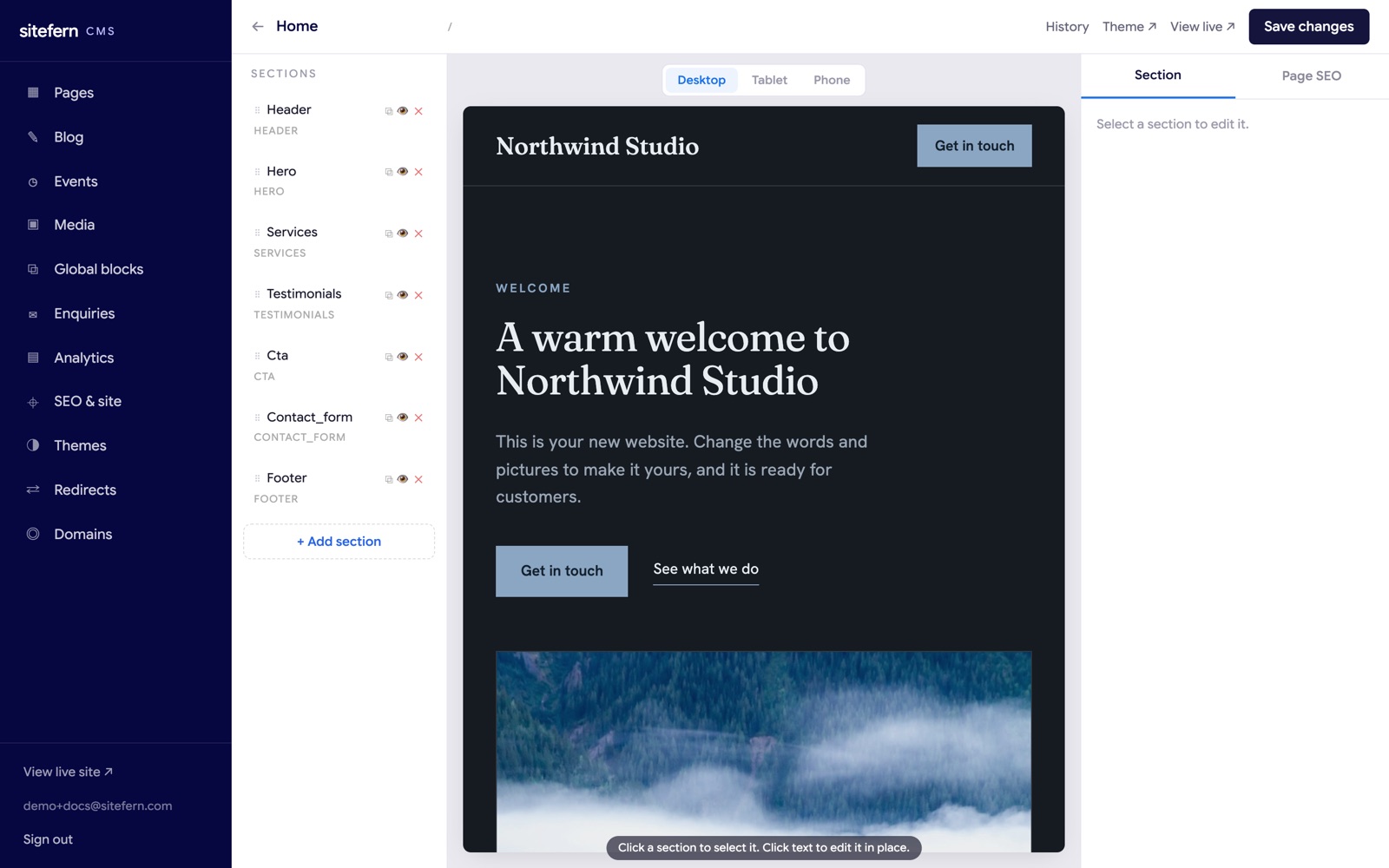
The three areas of the editor
The editor is split into three. On the left, the section rail lists every section on the page in order. In the centre, the live preview shows the real rendered page. On the right, the settings panel holds the fields for whatever you have selected, under a Section tab and a Page SEO tab. Along the top is the toolbar.
The toolbar
The top bar carries the controls that act on the whole page. The back arrow returns to the Pages list. The page title and its web address sit next to it. On the right are History (covered below), a link to theme settings, View live to open the published page in a new tab, and the Save changes button. A small saved indicator shows the last time your work was stored.
How do sections work?
Every page is a stack of sections, listed in the left rail: a header, a hero, services, testimonials, a call to action, a contact form and a footer in the example above. Each section is a self-contained block with its own content. Click a section in the rail, or click it directly in the preview, and its fields open in the right panel. Sections can be added, reordered by dragging, hidden, duplicated and deleted, and each can be styled on its own. The full reference, including every section type, is in sections and blocks.
Can I edit text directly on the page?
Yes. The preview in the centre is the real renderer, not an approximation, so what you see is exactly what visitors get. Click any piece of text in the preview and you can type over it in place, the way you would edit a document. The hint along the bottom of the preview says it plainly: click a section to select it, click text to edit it in place. Changes you type are saved as you go.
How do I check it on a phone?
Above the preview are three buttons: Desktop, Tablet and Phone. They reframe the preview to each screen width so you can confirm the page reads well on a small screen before you publish. Most visitors to a small business site are on a phone, so this is worth a quick look every time.
Page SEO
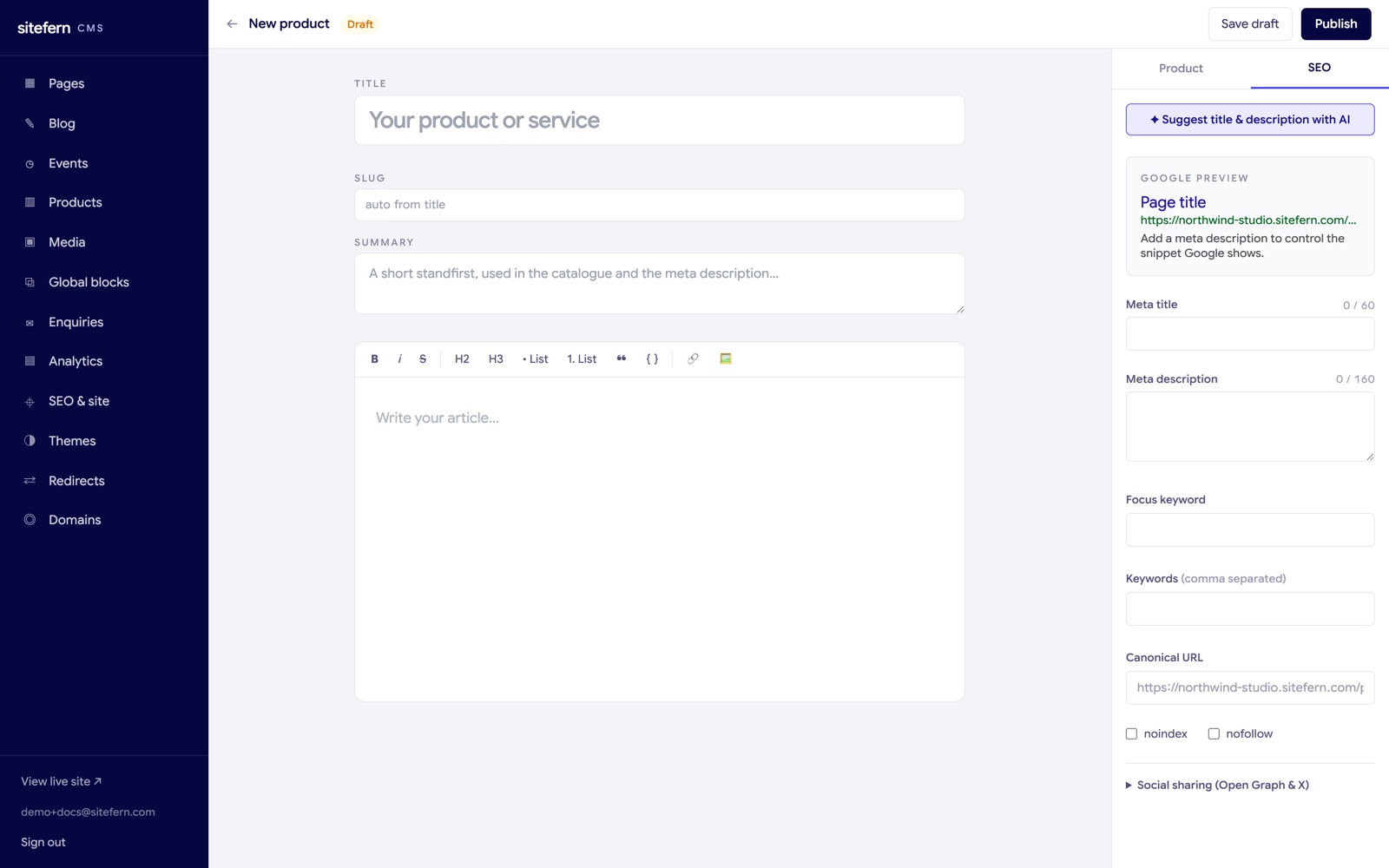
The right panel has two tabs: Section and Page SEO. The Page SEO tab is where you set the title and description this page shows in search results and when shared, with a live preview of how it will look. Sensible values are filled in from your content, so a page is findable even if you never open this tab. More on search settings is in SEO, analytics and enquiries.
AI help with titles and descriptions
If you connect an AI model, an extra button appears at the top of the Page SEO tab: Suggest title and description with AI. It reads the page's title and content and proposes a meta title and meta description, which you can accept as they are or edit. The same button is available on posts and products. It is a starting point for the wording, not a replacement for your judgement, so the suggestions are always editable before you save.
This is optional and off until you set it up. sitefern works with any OpenAI-compatible model, including one you run yourself, so the page content is sent to the model you choose rather than to us. When no model is connected, the button simply does not appear and everything else works as normal.
Version history
Every time you save a page, sitefern keeps a snapshot. The History button in the top bar opens a list of past versions with the time each was saved. Restoring one rolls the page back to that state, and because restoring also snapshots the current version first, you can always undo a restore. The most recent thirty versions of each page are kept.
Adding and managing pages
From the Pages list, the New page button creates a page with a title and a web address (its slug), ready to fill with sections. One page is your home page, marked as such in the list, and it is what shows at the root of your site. Each page can be published or kept unpublished while you work on it, and only published pages appear on your live site and in your sitemap. Changing a page's address is safe to do because you can add a redirect from the old one.